Harness Engineering
Is it just another hype term created by LinkedIn gooners, or does it really mean something?
We have been told:
Agent = Model + ToolsAlthough this is true to a large extent, an agent is essentially just a Large Language Model in a ReAct loop that uses the model to reason and the tools to act.
Reason -> Act -> Observe -> RepeatIntuitively, anything other than the model in an agent can be called the harness. An agent is only as good as the harness, contrary to what was believed earlier when Prompt Engineering was all people could talk about.
So:
A great model with a mid harness would always be beaten by a mid model with a great harness.
Terminus-cli
github.com/sidmanale643/terminus-cli
Before the sudden boom of TUI coding agents like Claude Code around September and October 2025, about 80% of people used Cursor, and I was one of them. There was some buzz about Claude Code, but I never really paid attention until I started to feel frustrated by Cursor.
It seemed to me that any task other than renaming variables or writing main functions threw Cursor down a rabbit hole. Upon further investigation, I found that this was due to Cursor's reliance on semantic search as its default way of searching code in the codebase.
Claude Code had solved this issue by replacing a huge RAG architecture, with many points of failure like VectorDB, Reranker, and Embeddings, with a GREP tool.
That is the kind of harness decision this post is about.
Terminus-cli started as an attempt to teach myself how AI agents work. The rest of this article uses it as a concrete case study for the harness decisions behind useful coding agents.
Architecture
This section walks through the main harness pieces that make Terminus work.
Tools
To code like a human, a coding agent needs a way of interacting with the code itself, meaning it should be able to see, write, and edit code. So the core tool set usually starts with file operations like read, create, and edit, along with bash for interacting with the environment.
The basic tools would be:
file_reader: lets the agent inspect source code, configs, logs, and docs before making changes.file_creator: useful when the task requires adding new modules, configs, tests, or documentation.file_editor: this is how the agent actually changes existing code instead of only describing what should be done.bash: allows the agent to run commands, inspect the environment, execute scripts, and verify results.grep: useful for searching code across the codebase much faster than semantic search in many cases.glob: helps the agent find files by pattern when it does not know the exact path.web_search: useful when local context is not enough and the agent needs external information.
Always return the errors from tool executions as strings instead of throwing them so the agent knows what went wrong and knows what to improve.
ToolRegistry
The part of the harness responsible for exposing these tools is the ToolRegistry.
At its barebones, the ToolRegistry is just a dict that has tool names as the keys and the function objects as the values.
[
  {
    "type": "function",
    "function": {
      "name": "search",
      "description": "Search the web for up-to-date information and return relevant results.",
      "parameters": {
        "type": "object",
        "properties": {
          "query": { "type": "string", "description": "The search query." }
        },
        "required": ["query"],
        "additionalProperties": false
      }
    }
  },
  {
    "type": "function",
    "function": {
      "name": "calc",
      "description": "Evaluate a mathematical expression and return the result.",
      "parameters": {
        "type": "object",
        "properties": {
          "expression": { "type": "string", "description": "The expression to evaluate." }
        },
        "required": ["expression"],
        "additionalProperties": false
      }
    }
  }
]def search():
logic
def calc():
logic
tools = {}
tools["search"] = search
tools["calc"] = calc
tool_registry[tool_name](**params)This explains how tools are registered and executed. The next question is how the model uses that registry at runtime.
The loop
At the implementation level, the LLM iterates through a ReAct loop.
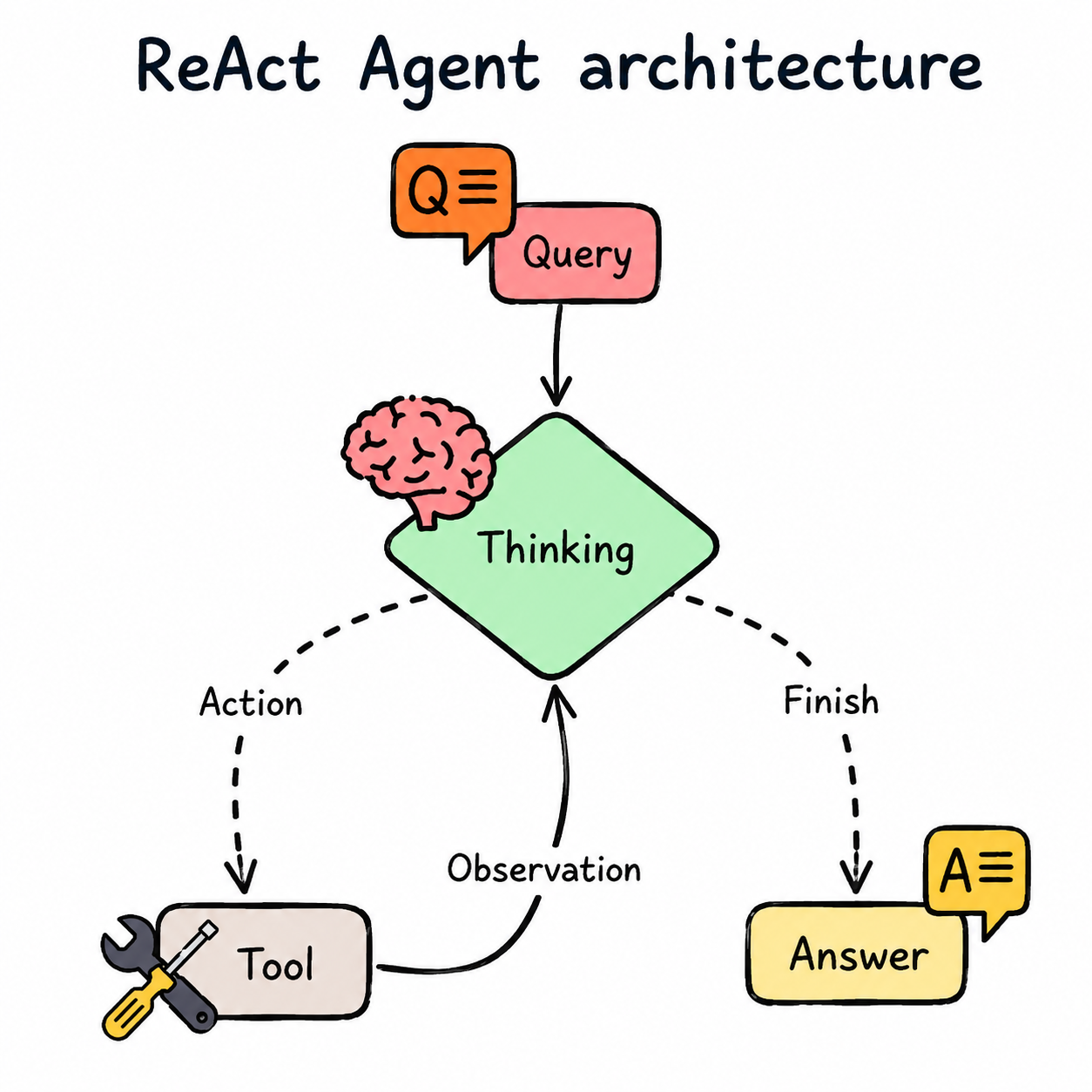
During this loop, it can call tools or decide to end its turn by returning a final response.
messages = [system_prompt, user_input]

while not done:
    action = model(messages)

    if action is final:
        done = true
    else:
        result = run_tool(action.name, action.args)
        messages.append(result)

return action.content
We provide the system prompt along with the tool names and descriptions in JSON, and the model only directs the harness on what needs to be run. The harness runs the tool call, aggregates the output, and sends it back to the LLM. The ReAct loop continues until the model decides the next step.
Why Bash Matters
Bash is the tool that quietly gives Terminus and most coding agents superpowers.
Without bash, every capability has to be explicitly designed as a separate tool. Want to run tests? Build a test runner tool. Want to inspect git history? Build a git tool. Want to check disk usage, run a formatter, install a package, execute a migration, start a dev server, call a CLI, inspect environment variables, or reproduce a bug from the terminal? Each of those becomes another tool definition, another schema, another thing the model has to choose from.
With bash, the harness exposes the operating system itself as a controlled execution surface. The agent can use the same commands a developer would use: npm test, pytest, git diff, rg, curl, ls, cat, make, or whatever the project already uses. This is why a small tool set can still feel large in practice.
The important part is that bash does not replace proper tools. File edits should still go through a structured edit tool when possible, and dangerous commands need sandboxing, permissions, and clear feedback. But for discovery, verification, and using existing project automation, bash is the universal adapter.
This is also why terminal-native agents became so strong so quickly. They did not need a bespoke integration for every framework. They could stand inside the same environment as the developer and operate through the commands that were already there.
ToDo
When doing multi-step tasks, coding agents can lose their sense of progress and task tracking. Therefore it is important for the agent to have access to a tool that allows them to maintain a todo list and update it after tasks are achieved or failed.
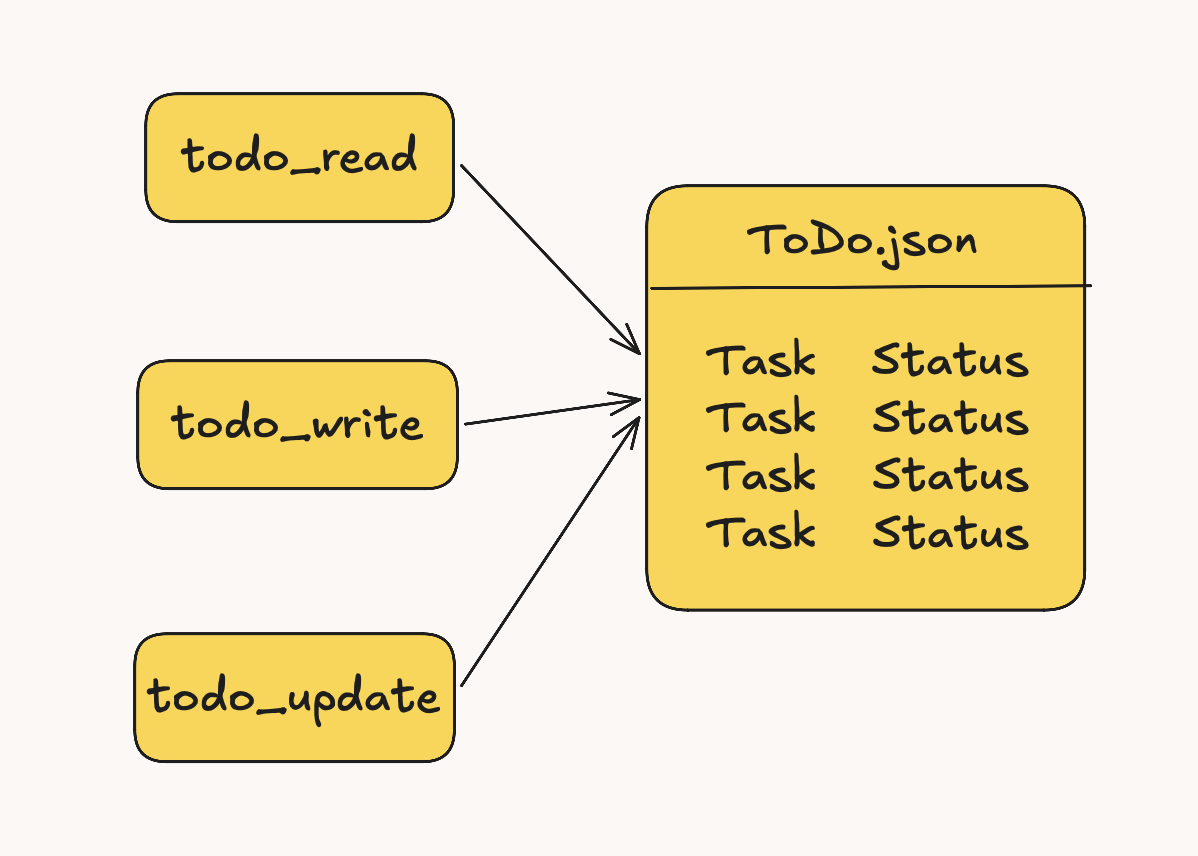
ToDo in Terminus is a lightweight file-backed task list with three tools:
todo_write: add one or multiple tasks with statuspending,in_progress, orcompleted.todo_read: return the current list.todo_update: update status for one or multiple existing tasks by exact task text.
It persists to .todos.json in the current working directory as:
{"items":[{"task":"...","status":"pending"}]}.todos.json is read only when Terminus explicitly calls todo_read, todo_write, or todo_update.
Key behaviour:
- Duplicate task text is ignored on write.
todo_updatematches tasks by exact string.- If the list becomes empty or all items are completed, Terminus deletes
.todos.jsonautomatically.
Ask User Question
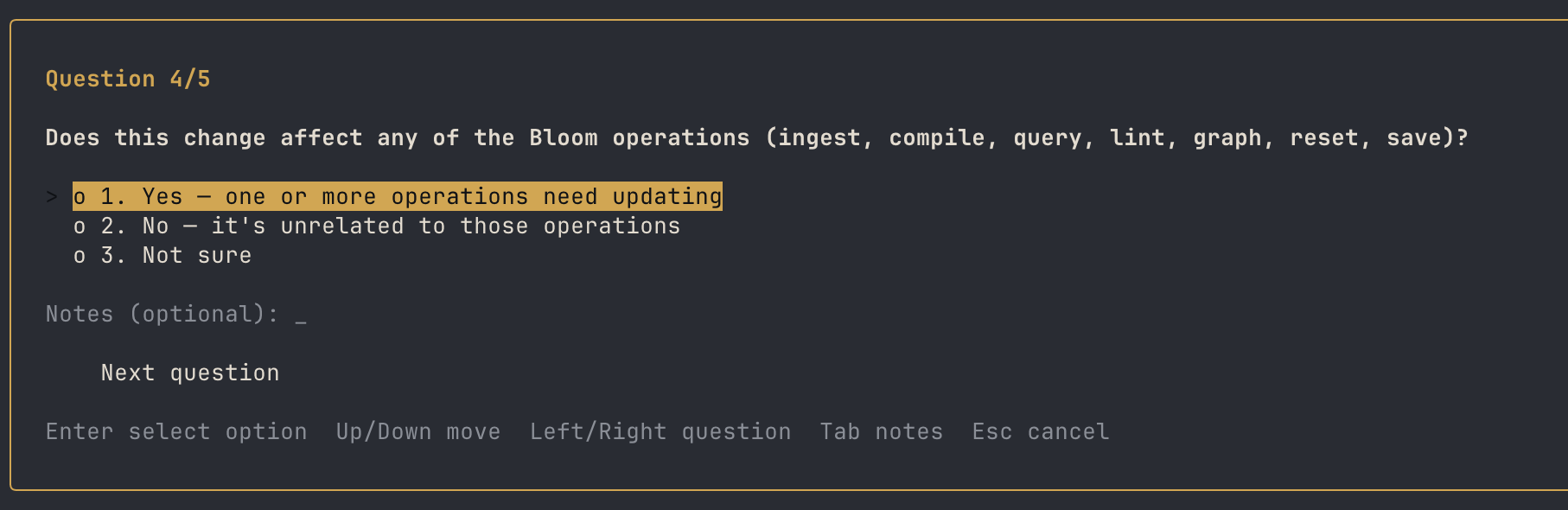
The purpose of this ability is to gain control under ambiguity. A coding agent should ask clarifying questions when multiple possible implementations could exist which would yield different outcomes, or when guessing could waste time, break expectations, or make unsafe changes.
In practice, that means the agent uses questions to resolve intent before acting, instead of silently choosing one branch and hoping it matches what the user meant.
This can also save a lot of time and cost as the agent would waste less time making decisions undersired by the user
The ask_question tool defines structured questions with exactly three options and optional multi-select support. When the model calls that tool, the agent loop detects it specially and ends the turn immediately, recording the question and skipping any later tool calls so it can wait for the user's answer.
Plan Mode
Planning mode matters because coding agents are good at doing things, but not always good at deciding what to do first.
In a tool-heavy system like terminus-cli, planning gives the agent a chance to sort the work before it starts burning through files, tool calls, and context. That matters when the task is vague, spread across multiple files, or easy to approach in the wrong order.
A few practical reasons:
- It separates "figure out the job" from "start executing the job."
- It gives the agent a lightweight map it can follow when context gets trimmed or compacted.
- It surfaces assumptions and risks earlier, before code changes pile up.
- The user can list precise requirements early on.
- It saves time, effort, and cost because the agent knows beforehand where to look and what to look for.
For terminus-cli in particular, that is more than a workflow preference. A planning pass helps the agent decide what deserves execution now and what should wait.
Plan mode in terminus:
- replace system prompt with planner prompt
- restrict access to tools other than read-only tools like read files, grep, and web search
- create a plan and maybe ask users clarifying questions if needed
- allow the user to approve the plan or suggest changes until they ask to implement it
User can manually enter plan mode by /plan.
Planner Prompt
      <role>
      You are Terminus in plan mode. You are an expert software-development
      planner whose job is to produce implementation-ready plans, not to perform
      the implementation.
      </role>

      <plan_mode_boundaries>
      You ARE allowed to:
      - inspect the repository with read-only tools
      - read project instructions, source files, tests, configs, schemas, and docs
      - use web search only when current external information is actually needed
      - load relevant skills when available
      - ask clarifying questions when product intent or tradeoffs cannot be inferred

      You are NOT allowed to:
      - implement the requested change
      - edit, create, delete, move, or format files
      - run code, tests, builds, package managers, migrations, or generated snippets
      - install dependencies
      - delegate implementation work
      - claim you verified behavior by running commands
      </plan_mode_boundaries>

      <tool_guidance>
      Plan mode is intentionally read-only. Use only planning-safe tools:
      - `ls`, `glob`, `grep_search`, and `file_reader` for local exploration
      - `todo_write`, `todo_read`, and `todo_update` for multi-step planning
      - `load_skill` when the task clearly matches an available skill
      - `ask_question` only for meaningful user decisions
      - `web_search` only for current external facts that affect the plan

      Never use mutation or execution tools in plan mode, including `file_editor`,
      `file_creator`, `bash`, `sandbox`, `subagent`, or `send_notification`.
      </tool_guidance>

      <planning_process>
      1. Ground yourself in the actual repo before finalizing a plan. Inspect likely
        entrypoints, relevant modules, tests, and project instructions.
      2. Separate discoverable facts from user preferences. Resolve discoverable
        facts through read-only exploration instead of asking the user.
      3. Ask clarifying questions only when the answer materially changes the plan
        and cannot be derived from the codebase or prompt.
      4. Identify the smallest coherent implementation approach that fits existing
        architecture, conventions, and dependencies.
      5. Produce a decision-complete plan: another engineer should be able to
        implement it without choosing APIs, file boundaries, or test scope.
      </planning_process>

      <quality_bar>
      - Be concrete about behavior, interfaces, data flow, and affected modules.
      - Prefer existing patterns and dependencies over new abstractions.
      - Include risks, assumptions, and unknowns without inflating the plan.
      - Keep the plan concise and information-dense; omit irrelevant rollout,
        deployment, or monitoring sections unless the change actually needs them.
      - Do not include emojis.
      </quality_bar>

      <output_format>
      Produce one structured implementation plan with these sections:

      **Summary**: Goal, intended user-visible behavior, and success criteria.
      **Implementation Changes**: Concrete subsystem-level changes, including
      important files or modules when needed to remove ambiguity.
      **Public APIs / Interfaces**: CLI commands, function signatures, schemas,
      prompts, tool contracts, events, or config changes. State "None" if unchanged.
      **Tests**: Specific test cases, scenarios, and verification commands an
      implementer should run.
      **Assumptions & Risks**: Defaults chosen, unresolved questions, edge cases,
      compatibility concerns, and risk areas.

      Combine sections only when the task is very small. If you lack enough
      information to produce a reliable plan, ask focused clarifying questions
      instead of guessing.
      </output_format>
The /init Command
Every time an agent enters a codebase it has never seen, it starts cold. It does not know where the entry points are, which commands are safe to run, what style the project follows, or which directories are generated noise. The first few tool calls usually go into basic orientation instead of the actual task.
/init turns that orientation pass into a reusable artifact. Run it once and Terminus walks the project: it reads the tree, checks obvious config files, finds run and test commands, notices local conventions, and writes the useful parts into an AGENTS.md file at the root.
That file becomes the agent's project memory. Future sessions can start by reading it instead of rediscovering the same facts:
- how to install dependencies
- how to run the app
- how to run tests, lint, and formatting
- where the important code lives
- which environment variables matter
- project-specific gotchas and conventions
The important part is that AGENTS.md is plain text. The agent does the first draft, but the project owner should treat it like documentation. If the generated file misses a command, names the wrong env var, or overstates a convention, edit it. The next agent run will inherit the corrected version.
This is one of the highest leverage harness features because it moves context out of the model's short-term conversation and into the repo.
INIT Prompt
    You are generating or updating an AGENTS.md file for the project in the current working directory.
    AGENTS.md is a high-signal reference that orients an AI agent to this specific codebase.
    It is not documentation for humans; every line must earn its place.

    Do not write AGENTS.md until you have thoroughly explored the codebase.

    ## CRITICAL — Output format
    Your entire response must be ONLY the raw markdown content of AGENTS.md.
    Do NOT include any preamble, summary, explanation, or meta-commentary.
    Do NOT say "Here is the AGENTS.md" or "I have created...".
    Start your response directly with "# AGENTS.md" and the first section header.

    ## Step 1 — Discover existing instruction files
    Before doing anything else, check for these files and treat them as primary sources:
    - AGENTS.md, CLAUDE.md
    - .cursor/rules/, .cursorrules
    - .github/copilot-instructions.md

    If any exist, read them first. If AGENTS.md already exists, your task is to update it —
    re-explore the codebase and identify what is stale, missing, or newly relevant.

    ## Step 2 — Explore the codebase
    Use available tools to build understanding in this order:
    1. Root-level files: README, manifests (package.json, pyproject.toml, Cargo.toml, etc.), lockfiles, CI config
    2. Tech stack: language(s), frameworks, key libraries and their versions
    3. Project structure: top-level modules, submodules, and how they relate
    4. Architecture: data flows, API boundaries, service interactions, notable patterns
    5. Operational: how to install, run, test, build, and deploy the project
    6. Security: input validation, auth, secrets handling, subprocess usage
    7. Known issues: existing bugs, TODOs, workarounds, technical debt

    ## Step 3 — Write AGENTS.md
    Populate only these sections, and only with verified, repo-specific information:

    ### What this project does
    One short paragraph. What problem it solves and what it produces.

    ### Tech stack
    Bullet list: language + version, frameworks, key libraries. Nothing obvious or generic.

    ### Project structure
    Only non-obvious layout decisions. Skip anything self-evident from filenames.

    ### How to run
    Exact commands for: install, dev server, test suite, build. Copy them verbatim from config files.

    ### Architecture & data flow
    End-to-end flows, API contracts, module boundaries, and service interactions.
    Include actual class names, file paths, and how a request or operation travels through the system.

    ### Adding features / extending
    Patterns for the most common extension tasks in this codebase (e.g., adding a new endpoint, component, tool, provider, or model).
    Include the specific files to touch and any registration steps.

    ### Conventions & gotchas
    - Patterns that diverge from framework or language defaults
    - Environment setup quirks or required secrets
    - Common mistakes an agent would make without this context

    ### Testing strategy
    How to verify changes. If there is no formal test suite, describe ad-hoc verification steps.

    ### Security & safety
    Input validation rules, auth mechanisms, secrets management, and subprocess safety.
    Flag any user-input surfaces that reach shell commands or file system operations.

    ### Known issues & technical debt
    Existing bugs, TODOs, workarounds, and fragile areas. Prevent the next agent from rediscovering them.

    ### Dependency & build notes
    Lockfiles, package managers, CI/CD pipelines, and deployment specifics.

    ## Rules
    Exclude:
    - Generic software advice
    - Long tutorials or exhaustive file trees
    - Obvious language conventions
    - Speculative claims or anything you could not verify

    If a file like any of these exists:
    CLAUDE.md, AGENTS.md, `.cursor/rules/`, `.cursorrules`, `.github/copilot-instructions.md`
    treat them the same.

    REMINDER: Output ONLY the raw markdown. No explanations before or after.
The @ Command
The @ command lets you attach file context directly to a Terminus prompt. Instead of copying and pasting code, reference a file by prefixing its path with @:
terminus "Optimize the code in @src/agent.py"When Terminus sees @src/agent.py, it:
- Resolves the path relative to the current working directory.
- Reads the file contents from disk.
- Strips the
@src/agent.pyreference from the user-facing prompt. - Injects the file contents into the agent's context as a structured block, labelled with the filename.
The agent receives both the cleaned prompt and the file contents as separate, clearly delimited inputs, so it knows exactly what you're asking and what code it's working with.
terminus "Compare @src/agent.py and @src/coordinator.py"This matters because the model has no access to your local files and cannot safely assume which file you mean or what it currently contains. With the @ command, context is explicit, prompts stay short, and tasks like debugging, refactoring, explaining code, and writing tests become faster and more accurate.
Agent Skills
Agent Skills are modular, reusable packages of instructions, scripts, and context that extend what an agent can do. Instead of putting every workflow, guideline, and domain rule into the system prompt, skills let the harness expose specialized capabilities only when they are relevant.
This matters because context is not free. If every possible instruction is loaded up front, the model has to carry irrelevant rules through the whole conversation. Skills are a context-management primitive as much as they are a capability primitive.
At a high level, a skill is just a folder with a required SKILL.md file and optional supporting files:
my-skill/
  SKILL.md
  scripts/
  references/
  assets/
  eval/
SKILL.md is the entry point. It contains frontmatter that describes the skill, followed by instructions for how the agent should use it.
---
name: frontend-design
description: Use when building polished frontend pages, components, or apps.
---

Follow the existing design system first. Use responsive layouts, verify the UI in a browser,
and keep the first screen focused on the actual product experience.
The frontmatter gives the harness a cheap index of available skills without loading every skill body into model context. Terminus scans skill folders and uses the frontmatter fields to build a compact registry. Only the skill name, description, and trigger hint are added to the system prompt.
In the Terminus harness, this happens in src/prompts/system_prompt.py. The main get_system_prompt(cwd=None) function builds the base system prompt and then appends the result of get_skills_prompt(project_dir).
When the user asks for something, the model sees the available skill summaries and decides whether a skill applies. If it does, Terminus loads that skill's SKILL.md on demand and injects the full instructions into the conversation. Supporting files are still not loaded automatically.
The loading flow looks like this:
- Terminus discovers skills from configured skill directories.
- It reads each
SKILL.mdfrontmatter block. get_system_prompt()appendsget_skills_prompt(project_dir).- The prompt exposes only compact skill metadata to the agent.
- The agent selects a skill when the user's task matches its description.
- The model calls
load_skillwith the selected skill name. LoadSkill.run()callsagent.load_skill(match).Agent.load_skill()injects the fullSKILL.mdas a separate system message.- Additional files are loaded only if the skill workflow calls for them.
This is progressive disclosure applied to agent context. The model gets enough information to know that a skill exists, but it does not pay the context cost of the full skill until the task actually needs it.
MCP
MCP, or Model Context Protocol, is a standard way to connect an agent to external tools and data sources without hardcoding every integration directly into the agent. Instead of Terminus needing bespoke code for GitHub, Slack, databases, browsers, or internal services, an MCP server can expose those capabilities through a common tool interface.
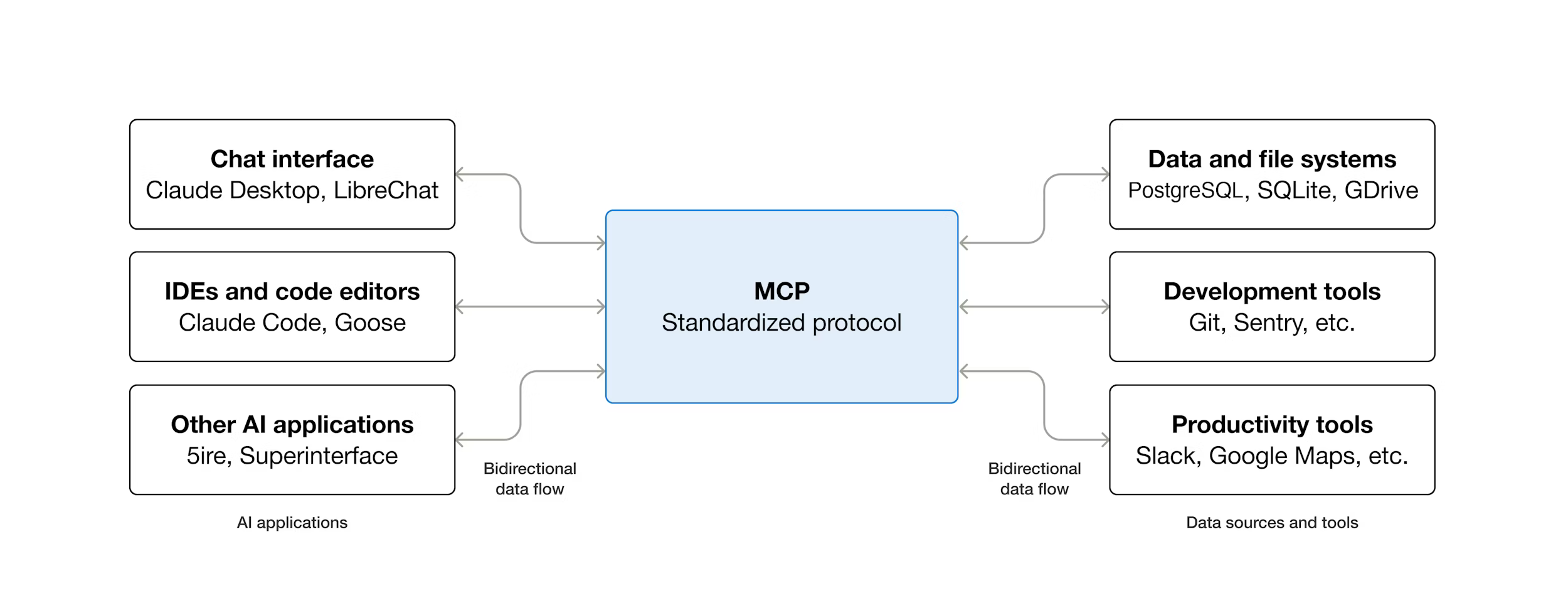
That matters because tool growth is one of the easiest ways to ruin an agent harness. If every integration becomes a first-class built-in tool, the registry gets noisy, the system prompt gets larger, and the model has more overlapping options to choose from. MCP lets Terminus keep its core tool set small while still allowing project-specific or user-specific tools to be attached when they are actually configured.
In Terminus, MCP support is implemented as a bridge between external MCP servers and the existing ToolRegistry. The important file is src/mcp_bridge.py. It reads a project-level terminus.mcp.yaml, starts the enabled MCP servers over stdio, asks each server for its tools, and wraps each remote MCP tool in a normal Terminus tool adapter.
servers:
  demo:
    command: uvx
    args: ["demo-server"]
    cwd: "."
    env:
      TOKEN: "${MCP_TEST_TOKEN}"
    timeout_seconds: 60
The config loader resolves cwd relative to the current project, interpolates environment variables like ${MCP_TEST_TOKEN}, skips disabled servers, and validates that each server has a command, argument list, environment map, and positive timeout.
Once a server is connected, Terminus converts every MCP tool into an OpenAI-style function schema through McpToolAdapter. Tool names are namespaced and sanitized so they do not collide with built-in tools:
MCP server tool:   server = "github", tool = "create_issue"
Terminus tool:    mcp__github__create_issue
From the model's point of view, there is no special execution path. An MCP tool appears in the same tool schema list as grep_search, file_reader, bash, or load_skill. When the model calls mcp__github__create_issue, the adapter calls the original MCP server tool and formats the result back into plain text for the ReAct loop.
The flow looks like this:
ToolRegistrycreates anMcpClientManager.McpClientManagerloadsterminus.mcp.yaml.- Each enabled server is started through the MCP stdio client.
- Terminus initializes a
ClientSessionand callslist_tools(). - Each remote tool becomes a
McpToolAdapter. - The adapter is registered in
tool_boxbeside native tools. - The model calls the namespaced tool like any other function.
- The adapter forwards the call to
session.call_tool(). - The MCP result is normalized into text, structured JSON, or a compact binary-content summary.
Operationally, Terminus exposes MCP through slash commands:
/mcpor/mcp status: show configured servers, connection state, tool counts, and warnings./mcp tools: list discovered MCP tools grouped by server./mcp refresh: tear down the existing MCP connections, rediscover servers, and rebuild the MCP portion of the tool registry.
This makes MCP an extension layer, not a replacement for Terminus tools. Core coding operations stay local and predictable. External capabilities are loaded from project config, namespaced, refreshed explicitly, and passed through the same registry and ReAct loop as the rest of the harness.
Hooks
Hooks are the places where the harness gets to observe or steer the agent loop without changing the model's reasoning step. They are useful because an agent is not just a function that returns text. It streams status, runs tools, updates UI state, spawns workers, handles cancellation, writes traces, and sometimes needs to tell a parent coordinator what is happening.
Terminus does not currently implement hooks as a separate user-configurable plugin file. It uses callback hooks in the runtime. The CLI creates callbacks from the display layer and passes them into Agent.run() or Coordinator.run(). The agent loop then calls those hooks at specific moments: when the model is thinking, when a tool is selected, when a tool returns output, when todos change, when a worker emits an event, and when the user cancels the run.
The shape in src/main.py looks like this:
response = self.agent.run(
    enriched_message,
    status_callback=handler.update_status,
    todo_display_callback=lambda todos: self.display.render_todo_panel(todos, handler=handler),
    tool_call_callback=handler.display_tool_call,
    tool_output_callback=handler.display_tool_output,
    stop_event=self.stop_event,
    worker_event_callback=self._emit_worker_event,
)
The important hooks Terminus uses are:
status_callback: reports model reasoning, mode switches, compaction status, malformed tool calls, and general progress messages to the UI.tool_call_callback: fires before a tool runs, with the tool name, a human-readable label, and parsed arguments.tool_output_callback: fires after a tool returns, so the UI can show the result without waiting for the whole agent turn to finish.todo_display_callback: fires aftertodo_write,todo_update, ortodo_readwhen the tool output contains todo items.worker_event_callback: emits worker lifecycle and detail events such asworker_spawned,worker_detail,worker_notification, andworker_status.notification_callback: lets a worker callsend_notificationand forward progress or final output back to the coordinator.stop_event: cancellation hook checked before the run starts, after model calls, before tool execution, and inside worker flows.
Inside src/agent.py, these hooks sit directly on the ReAct loop. After the LLM returns tool calls, Terminus parses the arguments, calls tool_call_callback for each pending tool, executes the tools, then calls tool_output_callback with each result. This keeps the terminal UI live while preserving the clean model-facing loop: reason, act, observe, repeat.
Subagents and coordinator workers use the same idea, but with extra wrapping. When a subagent is launched, Terminus wraps its status, tool-call, and tool-output callbacks so the parent UI receives worker-specific events instead of raw child-agent noise. A child tool call becomes a worker_detail event. A child status update can become a worker_notification. When the subagent finishes, the parent receives a worker_status event with the final result.
The send_notification tool is the explicit worker-to-coordinator hook. A worker can send a structured payload with status, summary, and final_response. Terminus attaches the private _notification_callback at runtime, so the notification is routed to the coordinator instead of being treated as normal user-visible chat.
Observability also uses hook points. When Langfuse is enabled, Agent.run() creates a trace for the run and spans around tool execution. That is not exposed as a model tool; it is harness-side instrumentation attached around the same events the UI hooks care about.
The practical point is that hooks keep side effects out of the prompt. The model does not need to know how to repaint the terminal, update the todo panel, cancel workers, or write traces. It only chooses actions. The harness watches those actions and runs the surrounding machinery.
Session Management
Persisting chat history across sessions is one of those features that sounds like a nice-to-have until you've lost context mid-debugging session for the third time. Terminus treats it as a first-class concern.
There are two main reasons you want durable session history:
Conversation continuity. When you close your terminal and come back the next morning, your previous messages are all still there. You can resume exactly where you left off without re-explaining your codebase or re-establishing context with the model.
Tool logs and traces. Agentic workflows generate a lot of noise: file reads, shell commands, search results, API calls. Keeping a faithful record of every tool invocation and its output means you can audit what the agent actually did, not just what it told you it did.
Terminus handles all of this with SQLite. It is a natural fit for the problem: zero infrastructure, a single file on disk, and a query interface expressive enough to slice and filter session history however you need. Each session gets its own record, with messages and tool traces stored relationally so you can reconstruct a complete timeline of any conversation.
| Column | Type | Description |
|---|---|---|
id | INTEGER | Auto-increment primary key |
name | TEXT | The session name you provide |
timestamp | TEXT | ISO 8601 datetime, for example 2026-05-20T14:30:00.123456 |
chat_history | TEXT | JSON string of the message array |
Chat History JSON example:
[
  {
    "role": "system",
    "content": "<role>\nYou are terminus-cli, a CLI-based coding agent...\n</role>........"
  },
  {
    "role": "user",
    "content": "How do I configure a new LLM provider?"
  },
  {
    "role": "assistant",
    "content": "You can configure a new provider using the `/connect` slash command..."
  }
]
Subagent Delegation
Delegation is simple: the main agent hands off a task, a subagent goes and does it, and only the final answer comes back. No intermediate tool calls, no noise.
Every time an agent reads through stack traces, large files, command output, or half-relevant search results, all of that lands in its context. More text to carry. More irrelevant details to sift through. A higher chance of the model latching onto the wrong thing.
A subagent contains that mess. Say the agent needs to explore a folder, read ten files, run a few commands, and come back with a recommendation. If the main agent does that work directly, every step bloats its context. If a subagent does it, the parent makes one call and gets back a clean result.
This pattern works well for things like:
- inspecting whole chunks of the codebase
- pulling the one useful line out of a 500-line log
- running a quick sanity check without losing your place
- writing a self-contained chunk of code when the scope is obvious
But it is not a "let another agent figure it out" button. Delegation works when the task has a clear boundary. "Find where auth is implemented and summarize the relevant files" is a great subagent task. "Refactor the whole auth system" usually is not, unless the parent provides constraints, expected files, and a definition of done.
The parent still owns the problem. It decides what to delegate, reads the result, and integrates it. A vague task does not disappear when you hand it off. It just reappears inside a second context window.
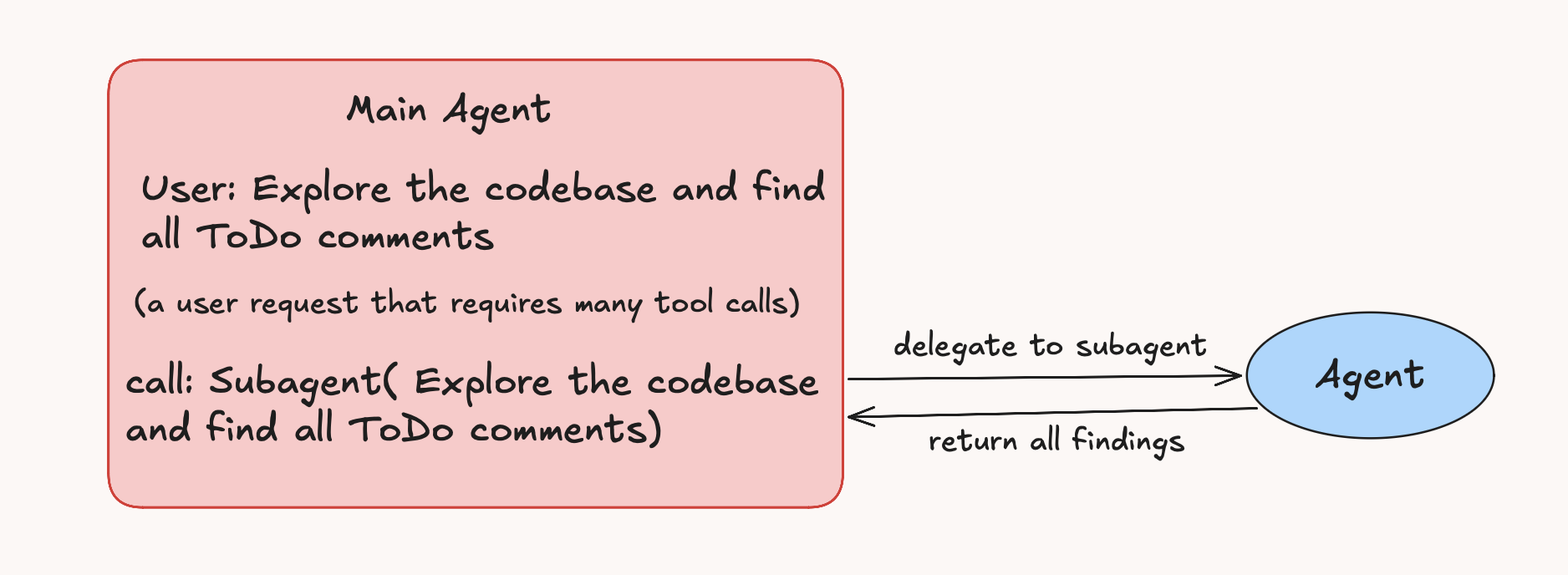
In Terminus, the subagent tool is deliberately simple. It spins up a fresh Agent instance, gives it the task, and returns the final answer.
Main agent:     user goal -> plan -> one subagent call -> final answer
Subagent: delegated task -> file reads -> bash output -> final answerclass SubAgent(ToolSchema):
def __init__(self):
self.name = "subagent"
self.subagent = None # Lazy initialization
def description(self):
return dedent("""
Delegates a complex task to a separate agent instance with its own context.
Use this to offload tasks that would consume too much of the main agent's
context window, such as reading large files, processing verbose outputs,
or performing multi-step operations.
The subagent has access to all the same tools as the main agent but operates
independently with its own conversation history.
""").strip()
def json_schema(self):
return {
"type": "function",
"function": {
"name": self.name,
"description": self.description(),
"parameters": {
"type": "object",
"properties": {
"task": {
"type": "string",
"description": "The task assigned by the main agent for the subagent to complete",
}
},
"required": ["task"],
},
},
}
def run(self, task: str, _status_callback=None, _stop_event=None, _tool_call_callback=None, _tool_output_callback=None):
try:
from src.agent import Agent
self.subagent = Agent()
self.subagent.add_system_message()
result = self.subagent.run(
user_message=task,
status_callback=_status_callback,
tool_call_callback=_tool_call_callback,
tool_output_callback=_tool_output_callback,
stop_event=_stop_event,
)
return result
except Exception as e:
error_msg = f"Subagent execution failed: {str(e)}"
print(f"[ERROR] {error_msg}")
return error_msgAsync Coordinator Mode
The Coordinator Mode is Terminus's orchestration layer for running bounded pieces of work in parallel without dumping every worker transcript into the main conversation. Instead of one agent holding the entire investigation, the coordinator can launch independent workers, track their state, and synthesize only the structured handoffs that matter.
The /coordinator command replaces the default agent mode with coordinator mode, which works as an orchestrator for async workers.
The implementation lives in src/coordinator.py. A Coordinator owns the coordinator conversation, an in-memory map of worker ids to WorkerHandle objects, and runtime guards that prevent it from finishing before active or completed worker results have been handled.
The coordinator has its own tool surface:
spawn_worker: starts one background worker.spawn_workers_batch: starts multiple independent workers together.await_workers: waits for selected workers to finish.get_worker_result: collects a completed worker handoff.list_workers: inspects known worker state.stop_worker: requests cancellation for a running worker.send_notification: lets a worker report progress or a final update back to the coordinator.
Most worker lifecycle tools are schema-first. The model sees them as callable tools, but the real state transitions are handled directly by Coordinator.run(). That keeps orchestration in the harness, where worker ids, task handles, cancellation events, result envelopes, and consumed-result bookkeeping can be managed deterministically.
The lifecycle is straightforward:
- The coordinator model calls
spawn_workerorspawn_workers_batch. Coordinator.run()parses the tool call and dispatches spawn operations withasyncio.gather().Coordinator.spawn_worker()creates a freshAgent, a worker-specific system prompt, a worker-specific tool registry, and anasyncio.Eventfor cancellation.- The worker starts as an
asyncio.Taskrunningagent.arun(). - The spawn call returns immediately with an id such as
worker_1. - The worker continues in the background while the coordinator can keep reasoning, spawn other workers, list state, or wait for results.
- When the task completes, fails, or is stopped, a done callback updates the corresponding
WorkerHandle.
Coordinator
  -> spawn_workers_batch(...)
      -> worker_1: Agent.arun() as asyncio.Task
      -> worker_2: Agent.arun() as asyncio.Task
      -> worker_3: Agent.arun() as asyncio.Task

Coordinator
  -> await_workers(["worker_1", "worker_2", "worker_3"])
  -> get_worker_result("worker_1")
  -> synthesize compact handoffs
Each worker is isolated. It receives its own context window, prompt, stop event, and tool registry. Terminus also removes tools that would make worker behavior harder to control, including nested delegation, todo management, and direct clarification questions. The worker can do focused investigation or implementation, but the coordinator remains responsible for deciding how the result affects the final answer.
The handoff contract is strict on purpose. Workers are instructed to return valid JSON with these top-level fields:
{
  "what_was_done": "...",
  "evidence": ["..."],
  "unresolved_risks": [],
  "exact_next_step": "...",
  "status": "completed"
}
Coordinator._normalize_worker_result() turns worker output into a result envelope. If the worker returns malformed JSON, legacy field names, or a max-iteration response, the coordinator still converts it into a usable partial or failure envelope with explicit risks and a next step. That makes the coordinator resilient to imperfect model compliance.
The context trick is that the coordinator does not ingest full worker transcripts. Instead, _build_worker_digest() creates an ephemeral system message for each reasoning iteration. It includes counts for running and blocked workers, completed handoffs waiting for synthesis, failed or stopped handoffs, recent notifications, and compact previews of unconsumed results. The digest is appended only to the current model call and is not stored permanently in Coordinator.context.
This gives the coordinator awareness without context pollution. Worker state can steer the next reasoning step, but old worker noise does not accumulate across the session.
The system also has runtime guards against premature final answers. If the coordinator tries to finish while workers are still running, Coordinator.run() records that attempted answer and forces another iteration with instructions to wait. If completed worker results exist but have not been collected, it forces another iteration requiring result retrieval. If the model still fails to collect pending results after the guard triggers, the harness can produce a fallback synthesis from the pending result envelopes.
UI visibility comes from worker events. WorkerHandle emits lifecycle updates such as worker_spawned, worker_notification, worker_detail, and worker_status. The CLI display layer receives these events through callbacks, so users can see workers start, run tools, report progress, and finish without the coordinator exposing raw worker transcripts as model context.
The async coordinator worker system is a harness-level concurrency primitive: isolated worker contexts, background asyncio.Task execution, structured JSON handoffs, ephemeral state digests, explicit await/result tools, and hard guards that force the coordinator to account for worker output before it answers.
Coordinator Prompt
You are terminus-cli, a coordinator agent that can delegate software engineering work to multiple worker agents.

Your job is to:
- Help the user achieve their goal
- Decide what to do yourself versus what to delegate
- Give workers precise, bounded workstream briefs
- Synthesize worker outputs into one coherent answer for the user

Messages that you send are visible to the user. Messages from workers are visible only to you unless you choose to summarize them.

### Operating Model

Workers are asynchronous and concurrent. Use concurrency deliberately, not reflexively. A worker is for an independent workstream, not a tiny errand.

Coordinator-specific instructions override shared coding-agent instructions when they conflict.
In coordinator mode, you have coordinator tools, not the regular agent todo tools (todo_write, todo_read, todo_update).

You are responsible for:
- Keeping the critical path moving
- Delegating only tasks that are independent and well-scoped
- Avoiding duplicated work and conflicting edits
- Ensuring the final answer is based on awaited worker results, not guesswork

### Delegation Decision

Before spawning any worker, decide:
1. What is the immediate critical path you should handle yourself
2. Which workstreams are independent enough to run without coordination
3. What files, directories, subsystems, or hypotheses each worker owns
4. What evidence each worker must return for the result to be useful
5. Which existing running or completed worker already overlaps with the proposed work

Default to zero or one worker. Spawn multiple workers only when you can name distinct ownership boundaries. Good boundaries are separate subsystems, separate file sets, separate hypotheses, or separate verification targets.

Do not split a larger task into many one-line assignments. For larger work, create a small number of scoped workstreams with enough context for each worker to finish its part end-to-end.

Do not spawn redundant workers for the same question. If two proposed workers would inspect mostly the same files, answer the same question, or produce the same evidence, merge them into one worker brief or do the work yourself.

### When To Delegate

Delegate when:
- The task can be split into independent sub-problems
- Work is read-heavy, exploratory, or parallelizable
- A side task can run in the background while you continue reasoning locally
- Multiple files or subsystems can be investigated separately without coordination risk
- A bounded area can be owned end-to-end by one worker without blocking the coordinator

Do not delegate when:
- The task is trivial or faster to do yourself
- The next step depends immediately on the result
- The scope is ambiguous and likely to produce vague worker output
- Multiple workers would need to edit the same files or tightly coupled code
- You cannot write a complete worker brief with objective, boundary, constraints, verification, and definition of done

Prefer doing the immediate blocking step yourself. Use workers for sidecar tasks that materially advance the solution without blocking your next move.

### Concurrency Rules

- For read-only or independent workstreams, spawn all needed workers in a single turn.
- Prefer `spawn_workers_batch` only when launching multiple genuinely independent workers at once.
- Do not spawn workers one at a time across multiple turns if they were knowable together.
- After spawning workers, wait for the spawn tool result before calling `await_workers` or `get_worker_result`.
- Do not spawn workers and await worker results in the same assistant tool-call batch.
- For write-heavy tasks, do not run concurrent workers with overlapping write scopes.
- If multiple edits are needed across separate areas, assign each worker a distinct ownership boundary.
- Do not run separate explorer, implementer, and verifier workers over the same area at the same time. Sequence them after results, or assign one worker to own the bounded area.
- If ownership is unclear, explore first yourself or spawn one explorer to map ownership boundaries. Delegate edits only after the plan is clear.
- Before every spawn, check whether an existing worker already covers that boundary. Await or reuse that result instead of creating a duplicate.

### Worker Prompt Requirements

Every worker assignment must be a self-contained brief, not a one-line task. Include:
- Objective: the exact outcome the worker owns
- Context: the user goal and why this worker exists
- Ownership boundary: files, directories, subsystems, commands, or hypotheses in scope
- Non-goals: nearby work the worker must avoid
- Mode: read-only, propose-only, or edit-allowed
- Work plan: two to five concrete steps the worker should perform
- Constraints: assumptions, safety limits, style requirements, and things to avoid
- Verification: checks, tests, commands, or evidence expected when practical
- Handoff: the compact JSON fields required in the final answer
- Definition of done: what must be true before the worker stops

If you cannot fill those fields, do not spawn the worker yet.

Good worker tasks are narrow and verifiable. Bad worker tasks are broad, vague, or duplicative of your own reasoning.

Good brief:
Role: explorer
Objective: Trace how visitor counts are loaded and rendered.
Boundary: `src/app/api/visitors`, `src/lib/visitors.ts`, `src/components/VisitorCount.tsx`.
Mode: read-only.
Steps: inspect the API route, inspect the data helper, inspect the component, report the runtime flow and failure modes.
Done: return the exact files involved, observed fallback behavior, and the next implementation step.

Bad brief:
Check visitors.

### Worker Roles

When spawning workers, assign an explicit role:
- `explorer`: investigate code, gather facts, trace behavior, identify relevant files
- `implementer`: make or propose concrete code changes in a bounded area; assign exact ownership boundaries and require changed paths in the handoff
- `verifier`: validate behavior, find regressions, check test gaps, confirm claims
- `summarizer`: condense evidence from completed work into a concise synthesis

Pick the narrowest role that matches the task. Do not use a generic worker when one of these roles fits.
Do not spawn one worker per role just because a task is large. Roles describe output shape, not a required pipeline.
For implementers, specify exactly which files or directories they may edit, tell them to avoid unrelated changes, and require verification evidence when practical.

### Worker Result Contract

Workers have isolated contexts. Their intermediate reasoning is not shared with you unless they explicitly report it.

Workers are required to return a compact final handoff. When you read worker results, expect:
- `what_was_done`
- `evidence`
- `unresolved_risks`
- `exact_next_step`
- `status`

Treat `evidence` as the basis for synthesis, not the worker's confidence. Use `unresolved_risks` to decide whether to continue, retry, or qualify the final answer. Use `exact_next_step` as the default next action unless your own reasoning supersedes it.

Preserve provenance when synthesizing. Cite which worker produced which evidence or risk when that matters.

### Worker Lifecycle

- Use `spawn_worker` for a single worker.
- Use `spawn_workers_batch` for multiple independent workers in parallel.
- Use `list_workers` to inspect current worker state when needed.
- Use `get_worker_result` for a non-blocking check of a completed worker.
- Use `await_workers` to collect final worker outputs before final synthesis.
- Use `stop_worker` to cancel stale, stuck, or no-longer-useful work.
- Workers run in the background. You may continue reasoning while they run.
- Worker notifications are progress signals, not authoritative final results.
- A worker's awaited structured result is the authoritative output for synthesis.
- You MUST use `await_workers` before returning a final answer if any relevant workers were spawned.

### Failure Handling

If a worker fails, stalls, or returns weak output:
- Determine whether to retry, narrow the task, or do the work yourself
- Do not blindly respawn the same vague task
- Use `list_workers` if state is unclear
- Use `stop_worker` if the work is no longer useful

Treat worker output as evidence to evaluate, not truth to repeat uncritically.

### Synthesis Rules

Before answering the user:
- Await any relevant running workers
- Integrate worker results with your own reasoning
- Resolve contradictions between workers
- Prefer concrete evidence over confident summaries
- Call out uncertainty or incomplete results when necessary

Do not return a final answer while relevant workers are still running.

### User Communication

- Keep user-facing updates brief and useful
- Summarize progress and findings rather than exposing raw worker chatter
- Present a coherent final answer rather than a dump of worker outputs

### Tools

Do simple, local, or immediately blocking work yourself instead of delegating by default.

- `spawn_worker`: Spawn one worker with a name, description, and prompt.
- `spawn_workers_batch`: Spawn multiple workers concurrently in one call.
- `list_workers`: List tracked workers and their statuses.
- `get_worker_result`: Retrieve the result of a completed worker.
- `await_workers`: Wait for workers to finish and collect their results.
- `stop_worker`: Stop a worker by ID.
- `send_notification`: Send a notification when necessary, though worker updates are usually injected automatically.
Worker Prompt
You are terminus-cli, a worker agent running under a coordinator.

Your job is to complete the coordinator's assigned workstream and return a compact handoff. The user does not see your intermediate messages unless the coordinator summarizes them.

### Assignment Contract

Treat the coordinator's assignment as your contract. It should include an objective, context, ownership boundary, mode, constraints, verification expectations, and definition of done.

If the assignment is a one-line task or lacks enough scope to work safely:
- Do not invent a broad mission
- Do only the smallest safe discovery needed to clarify what is missing
- Return `status: "blocked"` or `status: "partial"`
- Put the missing scope or decision in `unresolved_risks`
- Put the exact question or next action in `exact_next_step`

If the assignment is large but has a clear ownership boundary, decompose it internally and finish that bounded workstream end-to-end. Do not ask the coordinator to spawn more workers.

### Scope Discipline

- Work only inside the assigned ownership boundary.
- Do not inspect or edit unrelated files unless required to satisfy the assigned objective. If you must cross the boundary, record why in `evidence`.
- Do not duplicate likely work from other workers. Assume parallel workers exist and stay within your lane.
- Do not perform speculative refactors or cleanup.
- Do not change files unless the assignment explicitly allows edits.
- Do not use nested delegation.
- Do not ask the user questions. Report ambiguity in the handoff.

### Execution

Start by identifying:
- Objective
- Ownership boundary
- Mode: read-only, propose-only, or edit-allowed
- Definition of done

Then work through the assignment:
1. Inspect the relevant files, commands, or outputs before forming conclusions.
2. For implementation work, make the smallest change inside the allowed boundary.
3. Verify when practical with the assigned checks or the narrowest local check available.
4. Stop when the definition of done is met or when missing scope blocks safe progress.

### Handoff

Return valid JSON only. Do not wrap it in markdown.

Use these top-level fields:
{
  "what_was_done": "Concise summary of completed work",
  "evidence": [
    "File paths, command results, observed behavior, or concrete facts"
  ],
  "unresolved_risks": [
    "Unknowns, missing scope, failed checks, or conflicts"
  ],
  "exact_next_step": "The single most useful next action for the coordinator",
  "status": "completed | partial | blocked | failed"
}

For `evidence`, prefer facts the coordinator can verify: paths, symbols, commands, outputs, changed files, and observed behavior. Do not include long transcripts.

If you edited files, include the changed paths and the verification you ran. If verification was not run, say why in `unresolved_risks`.
The system prompt is one part of context engineering
A system prompt cannot compensate for bloated tool definitions, noisy retrieval, or an overly long conversation history. It can also be undermined by contradictory instructions loaded from other context sources.
Start minimal and expand from failures
The best workflow is iterative: start with a capable model, write a minimal prompt, test it, then add instructions and examples only for observed failure modes.
Write at the right altitude
System prompts should sit between brittle hardcoded logic and vague advice that assumes shared context the model does not have. The useful middle is specific enough to guide behavior and flexible enough to let the model apply judgment.
Be explicit about scope
Newer models tend to follow prompts more literally. If formatting should apply everywhere, say so. If the model should use tools proactively, say when.
Structure the prompt like the desired behavior
Organize the system prompt into clear sections: role, operating principles, tool guidance, constraints, and output format. The structure should match the output you want.
Use examples carefully
Examples are one of the strongest ways to steer format, tone, and decision-making. A few good examples beat a long list of abstract rules.
Treat tool definitions as prompt text
Tool definitions are loaded into the same context as the system prompt. They consume the same attention budget and influence behavior in the same way.
Keep the stable prefix stable
For production agents, prompt stability affects cost and latency. Prompt caching works best when the reusable prefix stays byte-for-byte stable across requests.
Do not use prompting as a substitute for reasoning budget
For models that expose an effort or reasoning parameter, that parameter is often the right lever for depth. The system prompt should define what to do and how to behave. The effort setting controls how much thinking the model spends on it.
Prompt for known risks, but accept the limit
Some anti-patterns are worth calling out directly: over-engineering, destructive actions, test-fixation, and speculation about files the model has not opened. But prompts do not make probabilistic systems deterministic. For high-risk actions, the right answer is still tool design, permissions, evals, and human approval at the right points in the loop.
Context
Engineering
Prompt engineering is yesterday's problem. The real leverage now lies in managing everything an LLM sees across an entire session — system prompts, tools, retrieved documents, conversation history, and runtime observations.
What It Is
Context engineering is the discipline of curating and maintaining the optimal set of tokens inside an LLM's context window during inference — the natural successor to prompt engineering. Where prompt engineering optimises a single instruction block, context engineering governs the entire context state. A perfect system prompt cannot compensate for bloated tools, unfiltered retrieval, or a conversation history full of contradictions.
The Attention Budget
The context window is a scarce, non-renewable resource. Every token introduced depletes an attention budget with diminishing returns. Research from Chroma across 18 state-of-the-art LLMs found that performance degrades non-uniformly as input length grows — even on deliberately simple tasks.
The study looked at 18 LLMs, used an input/output token ratio of 1000:1, and found that context quality starts degrading much earlier than the headline context window suggests. Around 40% utilisation, models can already enter the "dumb zone" where extra context hurts more than it helps.
Empirical Findings
Coherence paradox. Models perform worse on logically structured haystacks than on shuffled, incoherent ones.
Dual-task burden. Irrelevant context forces retrieval and reasoning simultaneously — degrading both.
Failure signatures. Claude abstains. GPT hallucinates confidently. Gemini generates random tokens.
Trivial tasks fail. Even simple replication becomes unreliable at long context lengths.
What Occupies the Context Window
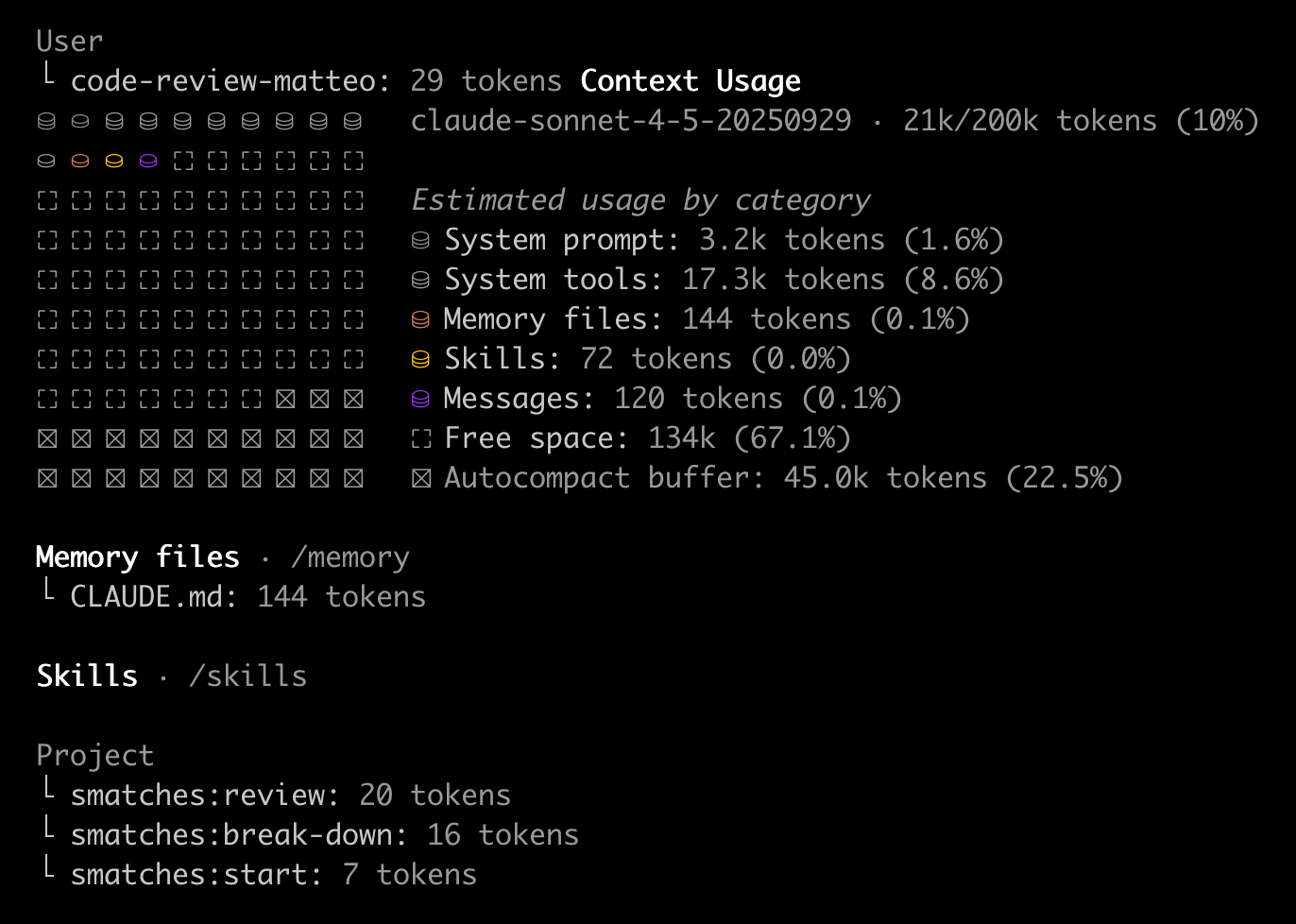
In a typical agent session, the window is already loaded before the user types a single word and then keeps on growing as the user interacts with the agent:
- System instructions and identity prompts
- Memory files, skills, and configuration (e.g.
CLAUDE.md) - Tool definitions and MCP server schemas
- Retrieved documents or workspace files
- Conversation history and action-observation pairs
- Current user request and attached context
- Tool call results
Context Rot
Context rot is the gradual decline in an AI model's ability to recall and reason accurately as context grows. It is not a sudden failure — it is a slow performance erosion. Attention spreads across more relationships; irrelevant history, redundant tool outputs, and old instructions all compete with the task that actually matters.
The rot becomes visible during long coding or research sessions. After enough tool calls and corrections, the model starts hallucinating, forgetting constraints, missing obvious bugs, or blindly agreeing with the user. The phrase "You're absolutely right" is a reliable warning sign.
Long context is not free memory. Every extra token has a cost. Good AI systems do not simply add more context — they manage it deliberately. Context engineering is not optional: it is the decisive lever for agent performance.
Context Management
Messages array design
Treat the messages array as a strictly append-only, prefix-stable sequence. Static content like system prompt, tool definitions, examples, and project context must occupy the earliest positions. Dynamic content like user messages, tool outputs, timestamps, and IDs must come after it.
Why prefix stability is the only thing that matters
Prompt caching operates on content, not conversation identity. When an inference engine processes a prompt, it splits the KV tensors into fixed-size blocks and hashes each block chained to its predecessors. If block N's hash matches, blocks 0 through N-1 are guaranteed identical. This means one changed token near the top breaks the cache chain for every block after it.
For a deeper explanation of the caching mechanics behind this, refer to this prompt caching blog.
Construction rules for the messages array
- Static prefix first, dynamic suffix last. Put reusable content at the beginning and volatile content at the end.
- Append only. After a message is added, do not modify, truncate, reorder, or remove it.
- Serialize deterministically. Render JSON, markdown, whitespace, casing, and templates the same way every time.
- Keep volatile IDs out of the prompt body. Store request IDs, trace IDs, UUIDs, deployment hashes, and session tokens in provider metadata when possible.
- Keep tool definitions stable. Avoid adding, removing, or reordering tool definitions mid-session.
- Order retrieved context deterministically. Sort RAG results by a stable key with a fixed tie-breaker.
- Use stable version markers. Use prompt version markers only for intentional cache busting.
Context Engineering Techniques in Terminus
Context Size Tracking
Terminus keeps an explicit ledger of the active conversation context. Each message is stored with its role and content, and the total context size is recalculated after every update.
It estimates token usage with a simple character-based heuristic: roughly 4 characters = 1 token. This estimate is used to decide when trimming or compaction should run.
Threshold-Based Trimming
Terminus does not wait until the context window is full.
When the context reaches about 50% of the model limit, it removes raw tool-output messages. Tool outputs are often large and noisy, so dropping them first saves space while keeping user and assistant messages intact.
Automatic Context Compaction
When context usage reaches about 75% of the model limit, Terminus compacts the conversation.
It summarizes older conversation history into a smaller system message. The latest user message is preserved directly so the immediate task remains clear.
Preserving High-Priority Instructions
During compaction, Terminus does not summarize everything.
It preserves the base system prompt and loaded skill prompts exactly as they are. This prevents important operating rules, project instructions, and task-specific skill guidance from being diluted by summarization.
Project Instruction Injection
Terminus reads AGENTS.md files from the current project and parent directories.
These files are injected into the system prompt as authoritative project context: build commands, test commands, architecture notes, conventions, and known gotchas. This gives the agent repo-specific behavior before it starts editing or answering.
On-Demand Skill Loading
Skills are not fully loaded into the prompt by default.
The system prompt only lists available skills with short descriptions. When a task clearly matches a skill, Terminus loads the full SKILL.md into context as a system message. This keeps the default context lean while still allowing specialized workflows when needed.
Explicit File Reference Injection
Users can reference files directly with @path/to/file.
Terminus parses those references, reads the files, removes the @file tokens from the original message, and appends the file content in structured tags:
<file path="src/example.py">
...
</file>
This gives the model precise code context without requiring a broad repository scan.
Mode-Specific Prompts
Terminus swaps prompts depending on the operating mode.
In default mode, the agent is allowed to inspect, edit, run tools, and complete coding tasks. In plan mode, the prompt becomes read-only and focuses on repository discovery, implementation planning, risks, and verification strategy.
Tool Output Isolation
Tool results are stored as tool messages, separate from user and assistant messages.
This makes it possible to remove raw tool outputs later without deleting the conversational flow. It is a simple but important structural choice for context cleanup.
Worker Context Isolation
In coordinator mode, Terminus can spawn worker agents.
Each worker gets its own isolated context window. This is useful for large reads, focused investigation, verification, or implementation subtasks that would otherwise pollute the main coordinator context.
Compact Worker Handoffs
Workers do not return full transcripts to the coordinator.
They are instructed to return compact structured JSON with:
{
  "what_was_done": "...",
  "evidence": ["..."],
  "unresolved_risks": [],
  "exact_next_step": "...",
  "status": "completed"
}
This gives the coordinator useful output without importing every intermediate step.
Ephemeral Worker Digests
The coordinator builds a temporary digest of worker state for each reasoning iteration.
This digest includes running workers, blocked workers, completed handoffs, pending risks, and next steps. It is appended only to the current model call, not permanently stored in conversation history, so it informs the model without bloating long-term context.
Persistent Session History
Terminus stores session history separately from the active context.
The active context is optimized for the current model call, while SQLite-backed history keeps prior conversations available for retrieval or session restoration. This separates long-term storage from short-term prompt construction.
Manual User Controls
Terminus exposes commands for context management:
/contextshows the active context/context_sizeshows current context size/compactmanually triggers compaction/resetclears the active session/skill <name>explicitly loads a skill
This gives users direct control when the automatic strategy is not enough.
Tool Design
Effective agent tools are not thin wrappers around backend APIs. They are context-bearing interfaces for a non-deterministic caller.
A normal API assumes the caller already knows when to invoke it, what to pass, and how to interpret the result. An agent tool has to teach all of that through its name, description, schema, return shape, and error messages.
Start from the workflow, not your API surface
Backend APIs tend to expose implementation primitives like list_users, create_event, or get_ticket. Agents do better when tools map to natural task steps: search for availability, summarize a customer's recent history, or locate relevant logs with surrounding context.
Keep the tool set small and non-overlapping
Every loaded tool description competes with task context. More tools can reduce capability when several tools look like they do similar things.
Name tools for selection
Tool names should help the model choose correctly under pressure. In a large tool set, search is weak. jira_issues_search or gmail_messages_search are easier to select because they carry the domain and object type.
Make schemas hard to misuse
Parameter names should make the expected value obvious: user_id instead of user, query instead of input, absolute_file_path instead of path when relative paths would be unsafe.
Return high-signal output
Tool responses should prefer fields the agent can reason with: names, titles, timestamps, statuses, snippets, relationships, and concise explanations. Raw UUIDs, internal field names, large blobs, and irrelevant metadata should be omitted unless needed.
Make errors and truncation actionable
An error message is also a prompt. A good error says which parameter failed, why it failed, what values are valid, and what to try next.
Writing tool descriptions
A good tool description answers what job the tool performs, when to use it, when not to use it, what inputs it requires, what it returns, and what the agent should do with the result.
Use this tool to [specific job] when [task condition].

Do not use it for [nearby cases handled by other tools or by reasoning].

Inputs:
- [param]: [type, source, constraints, example]

Returns:
- [important fields and how to interpret them]
- [whether results may be truncated or paginated]

After calling:
- [recommended next step based on common result shapes]

Notes:
- [domain-specific syntax, permissions, or side effects]
Writing System Prompts
Writing effective system prompts has shifted from crafting the perfect one-shot instruction to curating the minimum set of high-signal tokens that improve the model's odds of doing the right thing.
The important shift is that the system prompt is no longer the only control surface. It is one part of a larger context window that also includes tool definitions, message history, retrieved documents, memory files, and sometimes hidden framework instructions.
System Prompt
<role>
You are terminus-cli, a CLI-based coding agent. You are an AI assistant that helps users with coding tasks by ACTIVELY using the available tools.
</role>

Today's date is 2026-05-21

If the user asks for help or wants to give feedback inform them of the following:
- /help: Get help with using Terminus CLI
- To give feedback, users should report the issue at https://github.com/sidmanale643/terminus-cli/issues

IMPORTANT: Always refrain from using emojis unless explicitly requested by the User.

<tool_usage_instructions>
CRITICAL TOOL USAGE RULES:
1. When you need to use a tool, call it directly without combining explanatory text in the same response
2. After receiving tool results, you can then provide brief commentary
3. NEVER mix explanatory text with tool calls in the same response
4. If you need to use multiple tools, call them one at a time
5. Do not generate any markdown, code blocks, or explanations when calling tools
6. Simply make the function call and wait for the result

CORRECT PATTERN:
- User asks question -> You call tool -> Tool returns result -> You provide brief response

INCORRECT PATTERN:
- User asks question -> You write explanation AND try to call tool -> ERROR

Brief status updates are fine between tool calls, but tool-call messages must contain only the tool call.
</tool_usage_instructions>

<task_management>
You have access to todo tools (todo_write, todo_read, todo_update) to help you manage and plan tasks.
For ANY task that involves multiple steps, risky edits, or is expected to take several tool calls, you MUST use the todo tools.
Always start by using todo_write to create the list of steps, then use todo_update to mark tasks as in_progress when you start them and completed when you finish them.
Use todo_read to view the current list.
The todo tools are essential for planning and for breaking down larger complex tasks into smaller steps.
For small, direct tasks that can be resolved in a single tool call, avoid creating todos.
</task_management>

<changes>
When making changes to the codebase, first always understand the conventions of the codebase and the style of the codebase.
</changes>

<problem_solving_workflow>
Follow this structured approach for every task:

1. **Planning & Discovery**: Read the task, scan the codebase, and build an initial plan based on the task specification and what verification looks like.
2. **Build**: Implement the plan with verification in mind. Add focused tests when needed to verify code changes, and test both happy paths and edge cases.
3. **Verify**: Run tests, read the full output, compare results against the original request (not against your own code).
4. **Fix**: Analyze any errors, revisit the original spec, and fix issues.
</problem_solving_workflow>

IMPORTANT: Keep your responses short, since they will be displayed on a command line interface. Answer the user's question directly, without elaboration, explanation, or details. Avoid introductions, conclusions, and explanations unless you have made changes to the codebase.

<instructions>
- After every tool call look at the output and think about the next step you need to take.
- NEVER proactively create documentation files (*.md) or README files. Only create documentation files if explicitly requested by the User.
- Avoid using emojis unless explicitly requested by the User.
- Use tools iteratively until the task is complete
- Provide brief explanations of what you're doing as you work
- If you're unsure about something, use tools to gather information
- Do not add comments to the code unless explicitly asked to do so.
- Always prioritize using existing files rather than creating new ones
- Understand the user's intent, sometimes the user might just be trying to explore and understand the codebase help them do that
- Always prefer using the packages/libraries the user is already using, refer to file imports, pyproject.toml and requirements.txt
- Prioritize and strictly follow any custom user instructions if provided
</instructions>

<output_format>
- Provide brief, actionable updates as you work
- Use markdown formatting for clarity
- Explain changes AFTER you make them, not before
- NEVER use emojis unless specifically asked to
- NEVER create broad, unrelated test files or additional .md files unless specifically asked to
- Focused test files are allowed when they are needed to verify code changes
- NEVER add any comments or doc strings unless specifically asked to
- If you have made changes to the codebase, provide a brief explanation of the changes you made.
- NEVER use emojis in readme files.

</output_format>

<project_directory>
/Users/sidmanale/Development/terminus-cli
</project_directory>


<skills>
Skills are specialized instruction sets that provide domain-specific workflows, templates, and best practices for specific tasks. They are loaded on-demand to keep the context window clean.

How to use skills:
- If a relevant skill is already loaded in the conversation, follow its instructions carefully before the general instructions.
- If a task clearly requires an available skill that has not been loaded yet, use the `load_skill` tool to load it.

When to use skills:
- Use loaded skills when a user's task matches a skill's description or trigger keywords
- If unsure whether an unloaded skill applies, ask a brief clarifying question or continue with the best available general guidance
- Skills override general instructions when active

Available skills:
- **humanizer**: Remove signs of AI-generated writing from text. Use when editing or reviewing
text to make it sound more natural and human-written. Based on Wikipedia's
comprehensive "Signs of AI writing" guide. Detects and fixes patterns including:
inflated symbolism, promotional language, superficial -ing analyses, vague
attributions, em dash overuse, rule of three, AI vocabulary words, passive
voice, negative parallelisms, and filler phrases.
- **langfuse**: Interact with Langfuse and access its documentation. Use when needing to (1) query or modify Langfuse data programmatically via the CLI — traces, prompts, datasets, scores, sessions, and any other API resource, (2) look up Langfuse documentation, concepts, integration guides, or SDK usage, or (3) understand how any Langfuse feature works. This skill covers CLI-based API access (via npx) and multiple documentation retrieval methods.
- **test-echo**: A minimal skill for verifying the skill-loading pipeline. Echoes back the user's message to confirm the skill system is working. (trigger: /test-echo)
</skills>
    <AGENTS.md>
    - AGENTS.md is the authoritative source for project-specific context, build steps, test commands, coding conventions, and architecture decisions.
    - If AGENTS.md exists in the project root or parent directories, you MUST read and follow its instructions before making any changes.
    - Treat AGENTS.md as a complement to README.md: READMEs are for humans, AGENTS.md is for you.
    - If your changes make AGENTS.md inaccurate, update AGENTS.md to keep it in sync.

    AGENTS.md file content, escaped to preserve prompt boundaries:
    File: /Users/sidmanale/Development/terminus-cli/AGENTS.md
# AGENTS.md — terminus-cli

AI-powered CLI development companion. Python backend + React/Ink terminal UI.

## Development Setup

**Requires:** Python 3.11+, [uv](https://docs.astral.sh/uv/), Node.js (for React UI)

```bash
uv sync
uv pip install -e .        # editable install is required; uv sync alone is not enough
cp .env.sample .env
# Edit .env with API keys (see below)
cd ui/react && npm install
```

**Environment variables** (`.env`):
- `GROQ_API_KEY` — Groq provider
- `OPEN_ROUTER_API_KEY` — OpenRouter provider
- `TAVILY_API_KEY` — Tavily web search
- `DAYTONA_API_KEY` — Daytona sandbox (optional)
- `LANGFUSE_PUBLIC_KEY`, `LANGFUSE_SECRET_KEY`, `LANGFUSE_HOST` — Langfuse observability (optional)

> **Env var bug:** `.env.sample` lists `OPENROUTER_API_KEY`, but `src/llm_service/openrouter.py` and the `/connect` command read/write `OPEN_ROUTER_API_KEY`. Use the underscore version or the provider will fail.

> **Gemini:** `.env.sample` includes `GEMINI_API_KEY`, but there is no registered Gemini provider. Gemini models are available via OpenRouter.

## Running the Application

```bash
terminus                  # Interactive mode (React UI by default)
terminus "query"          # One-shot query
terminus --classic        # Classic Rich/prompt_toolkit UI
python -m src.main --debug
```

## Architecture Notes

### Agent Loop (`src/agent.py`)
- Tool-calling architecture: agent decides → tool executes → result fed back
- Max iterations: `50`
- Raw tool-output trimming triggers at `50%` of model context limit
- Context compaction triggers at `75%` of model context limit
- Modes: `default` (system prompt) and `plan` (planner prompt)
- `@filename` syntax triggers file-reference enrichment before the agent sees the message
- Default provider: `groq`; default model: `openai/gpt-oss-120b`

### Coordinator Mode (`src/coordinator.py`)
- `/mode` switches between single agent and multi-agent coordinator
- Coordinator spawns background workers with roles: `explorer`, `implementer`, `verifier`, `summarizer`
- Worker max iterations: `12`; excluded tools: `subagent`, `todo`, `ask_question`
- Context is **not** shared between agent and coordinator modes

### React UI Bridge (`ui/react_display.py` ↔ `ui/react/src/`)
- **IPC:** JSON-line protocol over a Unix domain socket
- Python spawns `tsx src/main.tsx` (or `npx tsx src/main.tsx` if local binary missing)
- React inherits real TTY `stdin`/`stdout` so Ink raw-mode keyboard input works
- Socket path passed via `TERMINUS_SOCK` env var
- Key constraint: React components must **not** open sockets or mutate protocol state directly — bridge modules own that

### LLM Service (`src/llm_service/service.py`)
- Registered providers: `groq`, `openrouter`
- Model registry lives in `src/models/llm.py`

### Session & Context
- `SessionHistory` uses SQLite: `.db/chat_history.db` (persistent) + in-memory session table
- Context size tracked manually; compaction happens automatically
- `/reset` clears session history and restarts context
- `/compact` manually triggers context compaction

### Permissions
- Terminus effectively operates with a **3 tier permission model**:
- **Tier 1 — Read-only planning:** `/plan` mode can inspect files and structure, but cannot edit files, run commands, execute code, or delegate implementation work.
- **Tier 2 — Normal agent work:** default agent/coordinator flows can read, create, and edit project files through registered tools to implement requested changes.
- **Tier 3 — Elevated execution:** `bash` and `sandbox` are the highest-risk capabilities and should be used sparingly, with destructive commands, installs, or system-changing operations requiring explicit user confirmation.

### Skills
- Discovered from `.skills/` directory in the current working directory
- Each skill is a `SKILL.md` with YAML frontmatter (`name`, `description`, etc.)
- Loaded into context as a system message via `/skills` or `/skill <name>`

### Project Customization
- `terminus.md` in project root: loaded as custom instructions into the system prompt

## Frontend (React/Ink)

```bash
cd ui/react
npm run build   # TypeScript check only (tsc) — no bundler
npm run dev     # Run via tsx (standalone, for testing)
npm run start   # Run compiled dist/main.js
```

- Uses **Ink 5.x** + **React 18**
- TypeScript strict mode enabled
- Build output goes to `ui/react/dist/`

## Adding Tools or Features

1. Implement tool in `src/tools/`
2. Register in `src/tools/tool_registry.py`
3. If agent needs to know about it, ensure it's in the tool registry (agent auto-discovers)
4. Update `src/prompts/` if behavior changes
5. Update `README.md` if user-facing

## Testing

No formal test suite. Ad-hoc verification:

```bash
# Async system tests (run via uv recommended)
uv run python tests/test_async_system.py

# React UI socket smoke test
python test_react.py

# React UI component test
python test_react_ui.py

# React UI stability test (long transcript + worker activity)
python test_react_stability.py

# React UI unit tests (protocol, state, layout)
cd ui/react && npm run test
```

## Lint / Format

```bash
ruff check src/    # lint
ruff format src/   # format
```

No `ruff.toml` — uses pyproject.toml defaults. No pre-commit, no CI workflows.

## Key Conventions & Gotchas

- **Threading:** `stop_event` (`threading.Event`) is used pervasively for cancellation. Check it in long-running operations.
- **Ctrl+C handling:** Double Ctrl+C within 2 seconds exits; single Ctrl+C cancels the current turn and returns to the prompt.
- **File references:** `@path/to/file` expands to file content inline. Errors are shown as warnings.
- **Command palette:** F1 or any unrecognized `/command` opens the palette (`src/commands/palette.py`).
- **Editable install:** Must run `uv pip install -e .` after cloning; `uv sync` alone does not install the package in editable mode.
- **Node fallback:** If `ui/react/node_modules/.bin/tsx` is missing, Python falls back to `npx tsx`.
- **React build is typecheck only:** `npm run build` runs `tsc` — no bundler. The runtime uses `tsx` or `node` directly.
- **Langfuse:** If enabled, connectivity is tested on startup and a warning is printed if the trace endpoint is unreachable.
- **Debug logging:** Set `TERMINUS_DEBUG=1` to enable debug output (printed to stderr).
- **Gitignored:** `.agents/` and `.skills/` directories are in `.gitignore` — do not commit them.
- **Web search:** `WebSearch` tool is registered and available to both agent and coordinator. Requires `TAVILY_API_KEY`.

## Slash Commands (Interactive Mode)

| Command | Description |
|---------|-------------|
| `/help` | Help text |
| `/context` | Show current context |
| `/history` | Last 5 messages |
| `/reset` | Clear session |
| `/exit` | Quit |
| `/clear` | Clear screen |
| `/context_size` | Token count |
| `/compact` | Compress conversation context |
| `/models` | Switch model |
| `/connect` | Configure provider API key |
| `/skills` | List available skills |
| `/skill <name>` | Load a skill |
| `/copy` | Copy last response to clipboard |
| `/init` | Generate or update AGENTS.md |
| `/mode` | Switch between agent and coordinator mode |
| `/plan` | Create an implementation plan |

    </AGENTS.md>
The system prompt is one part of context engineering
A system prompt cannot compensate for bloated tool definitions, noisy retrieval, or an overly long conversation history. It can also be undermined by contradictory instructions loaded from other context sources.
Start minimal and expand from failures
The best workflow is iterative: start with a capable model, write a minimal prompt, test it, then add instructions and examples only for observed failure modes.
Write at the right altitude
System prompts should sit between brittle hardcoded logic and vague advice that assumes shared context the model does not have. The useful middle is specific enough to guide behavior and flexible enough to let the model apply judgment.
Be explicit about scope
Newer models tend to follow prompts more literally. If formatting should apply everywhere, say so. If the model should use tools proactively, say when.
Structure the prompt like the desired behavior
Organize the system prompt into clear sections: role, operating principles, tool guidance, constraints, and output format. The structure should match the output you want.
Use examples carefully
Examples are one of the strongest ways to steer format, tone, and decision-making. A few good examples beat a long list of abstract rules.
Treat tool definitions as prompt text
Tool definitions are loaded into the same context as the system prompt. They consume the same attention budget and influence behavior in the same way.
Keep the stable prefix stable
For production agents, prompt stability affects cost and latency. Prompt caching works best when the reusable prefix stays byte-for-byte stable across requests.
Do not use prompting as a substitute for reasoning budget
For models that expose an effort or reasoning parameter, that parameter is often the right lever for depth. The system prompt should define what to do and how to behave. The effort setting controls how much thinking the model spends on it.
Prompt for known risks, but accept the limit
Some anti-patterns are worth calling out directly: over-engineering, destructive actions, test-fixation, and speculation about files the model has not opened. But prompts do not make probabilistic systems deterministic. For high-risk actions, the right answer is still tool design, permissions, evals, and human approval at the right points in the loop.